Authorized Products
The Supplier/Customer/Account/Destination Products screens are used to configure authorized products for records in each business entity. For example, the Supplier Products screen is used to configure authorized products for a specific supplier.
Products must already have been defined via the Products screen in order to be configured for any of these business entities. If no authorized products are configured, the business entity will inherit the authorized products from the next highest business level; see the image below to understand TMS7's business hierarchy:
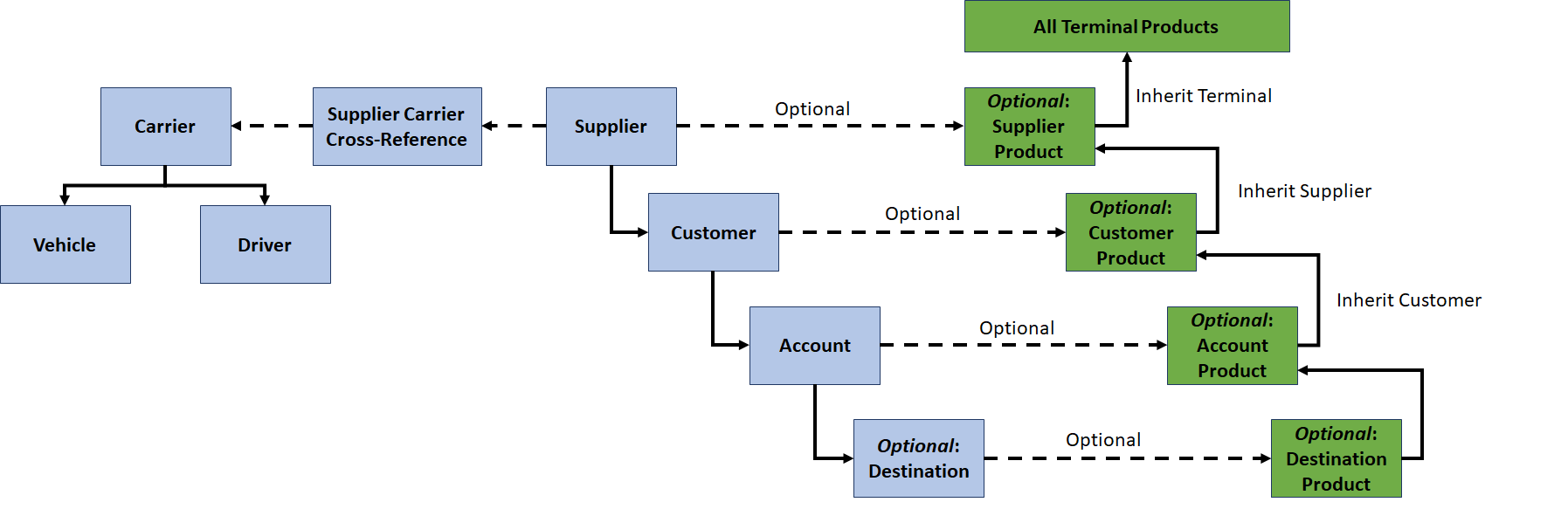
These four screens are identical in layout and function and will be discussed in this section as a group. See the screen IDs below for each of the individual screens; note that these screens all appear as screen embeds on the respective Suppliers/Customers/Accounts/Destinations master screens.
Screen Type: Maintenance
Screen IDs:
-
Supplier Products: MAINT-128
-
Customer Products: MAINT-041
-
Account Products: MAINT-005
-
Destination Products: MAINT-048
Screen Layout
To access the Supplier, Customer, Account, or Destination Products screens, complete the following:
-
On the TMS7 Home screen, search for '[Supplier/Customer/Account/Destination] Products' in the home screen search bar.
-
Select the desired Products screen.
-
Alternatively, a user can navigate to these screens using the Business menu:
-
Select the Business menu.
-
Select the Supplier, Customer, Account, or Destination sub-menu.
-
Select the desired Products screen from the sub-menu.
-
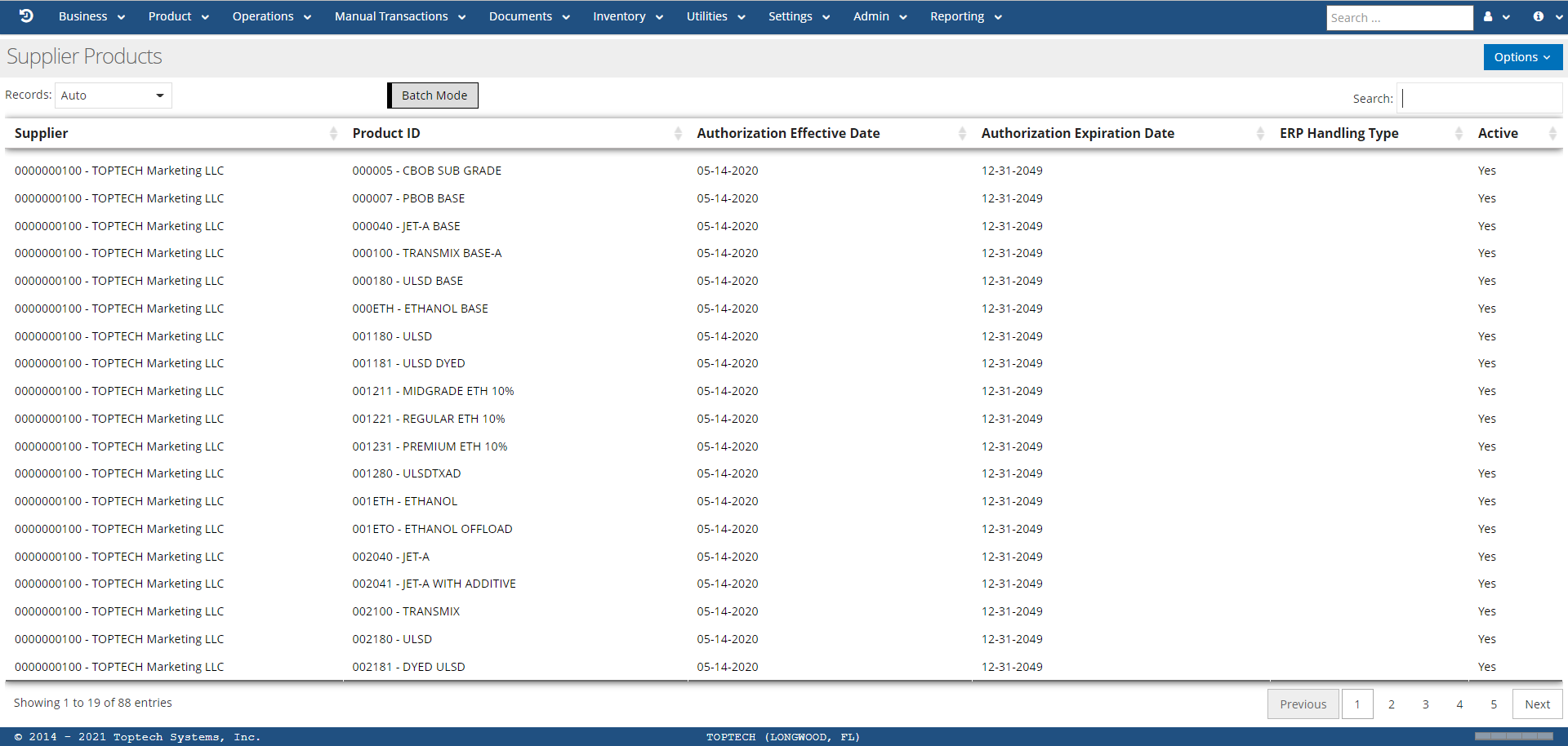
These screens will list records for products authorized for any records of that specific business entity, identified primarily by product ID/name and the business entity record ID/name. Below is an example of the Supplier Products screen:
Detail screen
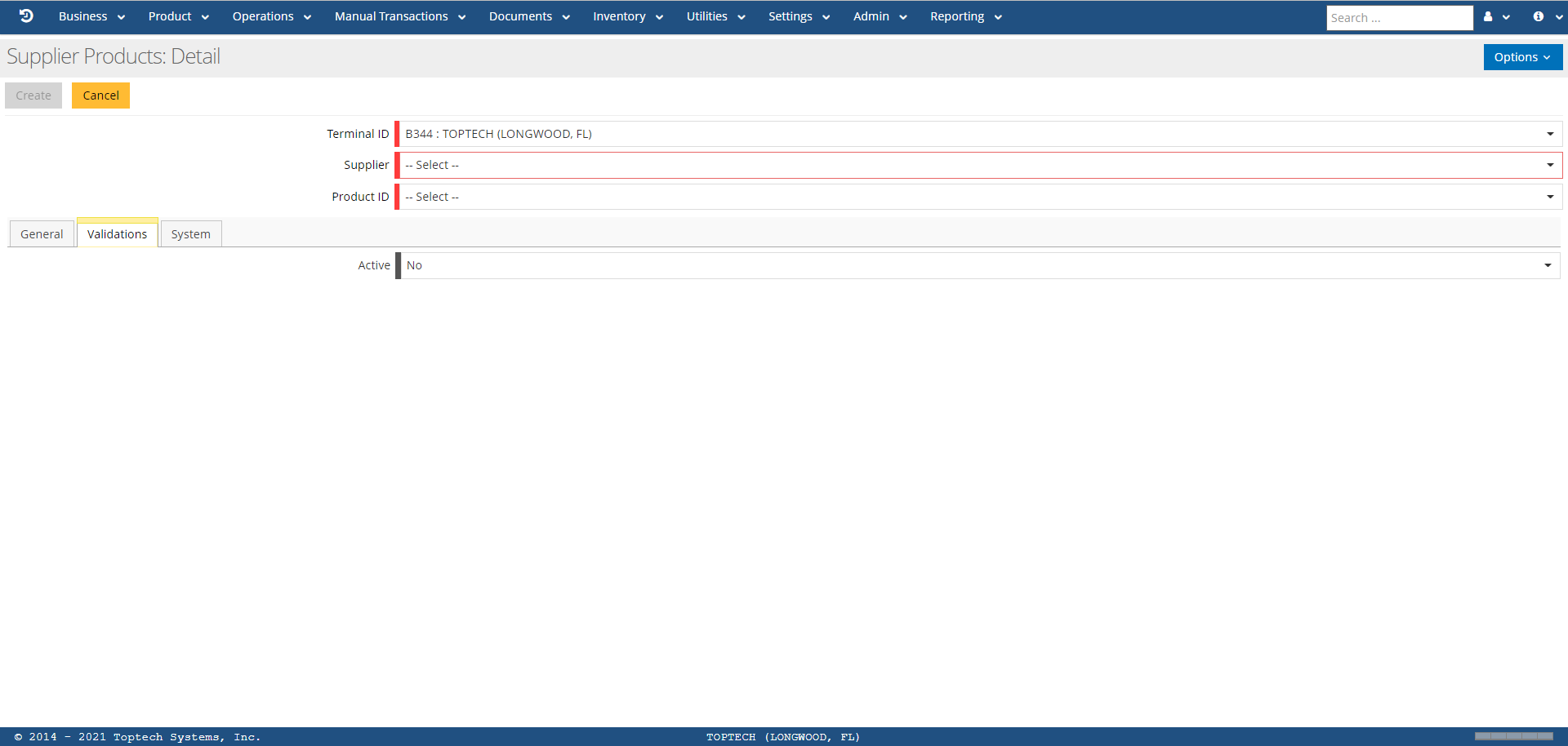
A user can select any record on these screens to view the Detail screen for that that record, or select 'New' from the 'Options' menu to create a new record. A user can configure a product authorization for a specific business entity record using the Detail screen. Below is an example of a Supplier Products: Detail screen:
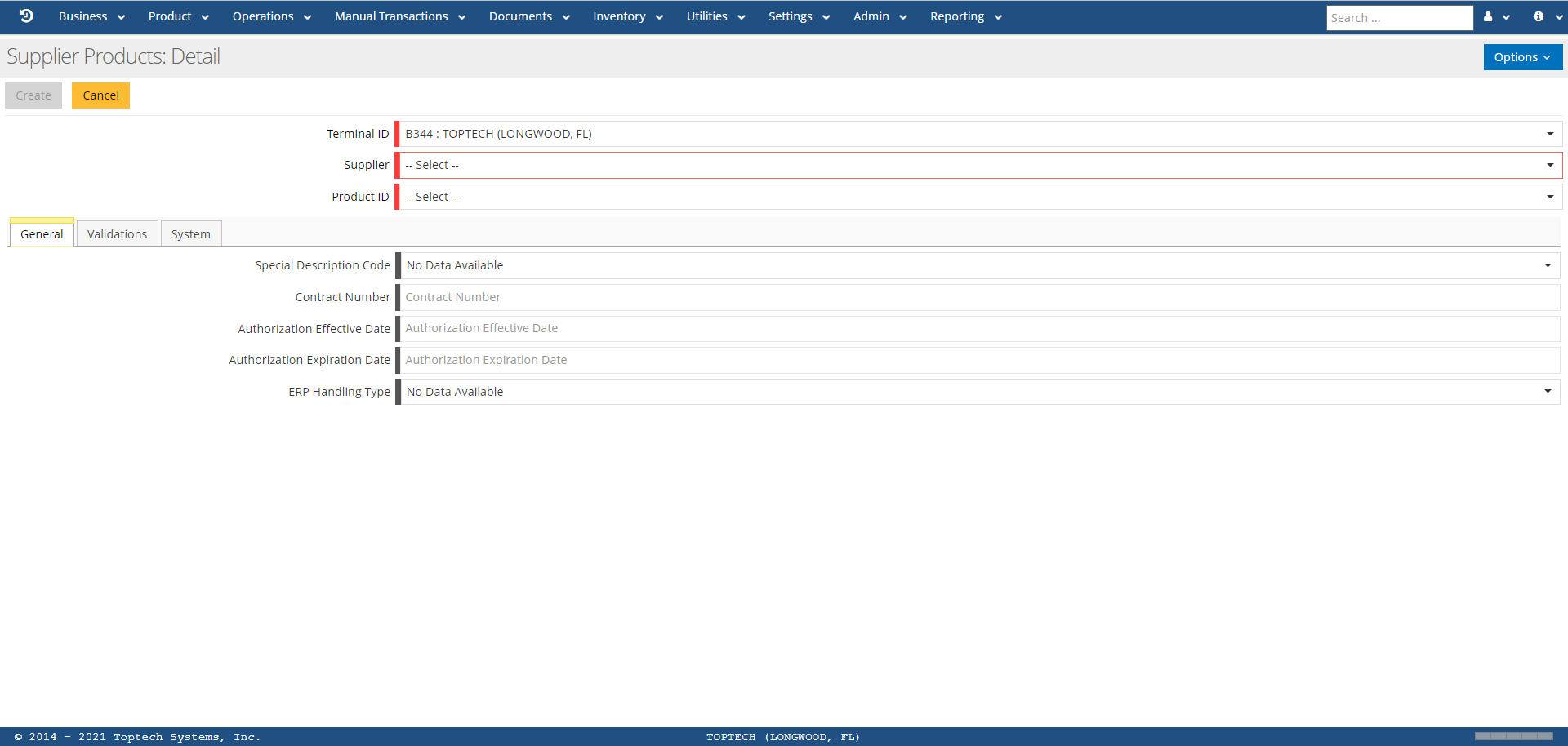
The features of the Detail screen are defined in the tables below:
| Feature | Description |
|---|---|
| Options |
The 'Options' menu contains the following features:
|
| Terminal ID | Select the terminal from the drop-down menu. |
| Supplier/Customer/Account/Destination | Depending on which Products screen you are using, you will need to select the required business entities from the drop-down menus. For example, the Destination Products screen requires you to select a Supplier, Customer, Account, and Destination. |
| Product ID | Select the product from the drop-down menu that is being authorized. The product must already be defined via the Products screen. |
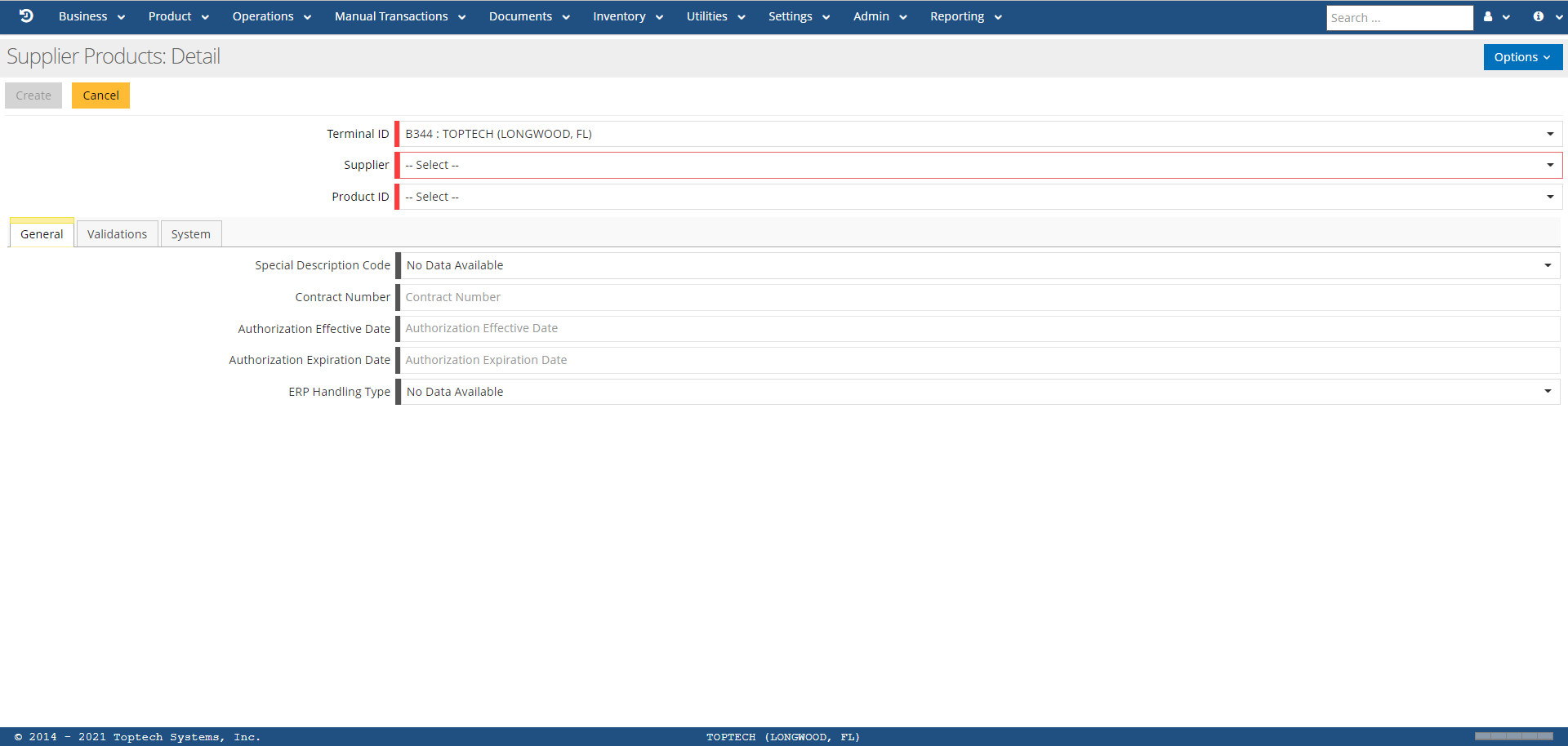
General Tab
| Feature | Description |
|---|---|
| Special Description Code | If a special description code exists for this product, enter the value in this field. Special description codes are defined via the Product Special Description screen. |
| Contract Number | If this product authorization is associated with a specific contract, enter the contract number. |
| Authorization Effective Date | The date on which the product authorization is in effect for that business entity, typically the day the record was created. This field is a calendar-select with mm/dd/yyyy format. |
| Authorization Expiration Date | The date on which the product authorization will expire for that business entity. If this date is not known or not necessary, enter 12/31/2049 to indicate that the authorization is indefinite. This field is a calendar-select with mm/dd/yyyy format. |
| ERP Handling Type | Enterprise Resource Planning (ERP) Handling Type. Defines excise usage and fiscal status of a product, which can affect printed documents. |
Validations Tab
| Feature | Description |
|---|---|
| Active |
If 'Yes' is selected, this indicates the product authorization is active. If 'No' is selected, this indicates the product authorization is inactive. |